


Expo Go
Expo Project
I first understood the appeal of Expo Go when I looked at it from the point of view of someone who wants to try a React-based mobile project without immediately turning the phone into a full development workstation. The app gives a phone a practical role in the process: it becomes the place where an Expo project can be opened and experienced while the code remains on a computer. That simple handoff is the reason I find it more useful than its short store description suggests.
This is a free app in the Libraries & Demo category, developed by Expo Project. It is aimed at people building with JavaScript and React, but it is also useful for designers, testers, students, and clients who need to see a working mobile interface without setting up the entire native toolchain. I would not describe it as a general-purpose app builder for beginners, though. It is a companion for a particular development workflow, and that distinction matters before you install it.
The public response is unusually strong, with a 4.8 average from around 23 thousand ratings and more than a million installs. Those figures suggest that the basic idea works well for a large audience, but they do not remove the need to understand its boundaries. In my experience, the smoothest results come when the project is deliberately kept within Expo Go’s supported environment.
From a blank project to a working screen
The starting condition: a project on the computer
The normal starting point is not an empty phone. You already have, or someone has given you, an Expo project that uses JavaScript and React. The phone app does not replace the computer-side project setup, editing, or package management. Instead, it provides the mobile viewing side of the loop. That makes it especially attractive when your goal is to inspect a screen, test a navigation idea, or show progress to another person.
For a newcomer, this changes the first question from “How do I build a complete native app?” to “Can I open this project on my phone and see the current result?” That is a much friendlier first milestone. I can focus on whether a form feels comfortable, whether a card layout works on a real display, or whether a transition makes sense, rather than waiting until the end of development to discover that the interface is awkward.
Related News

Instagram Is No Longer a Photo App. It Is an Attention Engine

Microsoft Teams Mobile: When Collaboration Becomes Navigation

How the NFL App Adapts to Android and iOS Updates

Temu: Elevate Your Shopping Experience to Billionaire Status

Why Traffic Rider Works Best as a Precision Reflex Game

How Google’s Find Hub Transforms Everyday Searches
The trade-off is that the app assumes some understanding of the Expo ecosystem. If you do not know what a project is, how JavaScript dependencies work, or how a development server connects a computer and phone, the first session may feel confusing. A traditional visual app builder is a better choice for someone who wants to assemble screens without touching code.
The first handoff: getting the project onto the phone
The central workflow is a handoff between the development computer and the mobile device. You start the project on the computer, open Expo Go on the phone, and use the project’s available connection method to load the running experience. The exact convenience of this step depends on your local network and project setup, so I treat the app as a fast preview client rather than a magical one-tap deployment system.
When the connection works, the experience is refreshingly direct. I change a component, save it, and return to the phone to inspect the result. That short loop encourages small experiments. Instead of making several unrelated edits and then trying to diagnose a large change, I can adjust spacing, text hierarchy, or touch targets one at a time and immediately judge the effect on an actual handset.
Gallery
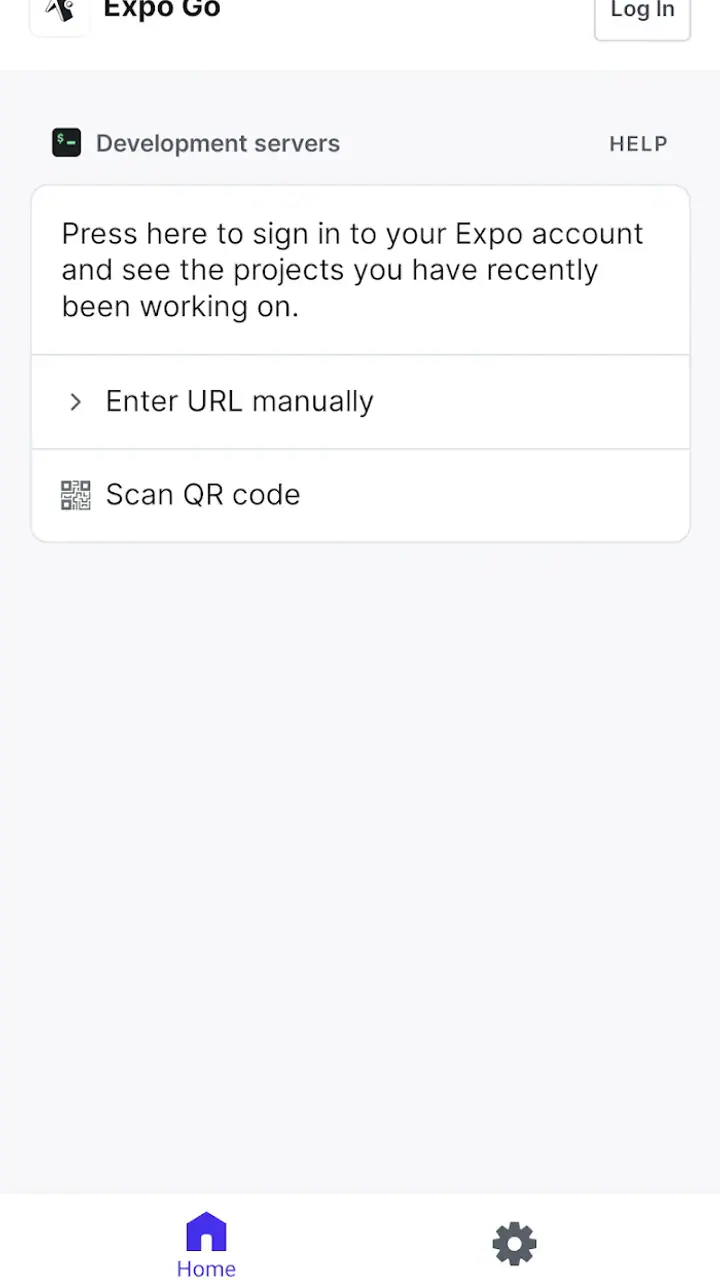
A useful habit is to keep the phone beside the computer rather than relying only on a desktop simulator. A mobile screen exposes problems that are easy to miss on a large monitor: text may wrap sooner, a button may sit too close to the edge, and a layout that looks balanced with a mouse can feel cramped when used with a thumb. Expo Go makes this kind of early checking convenient.
Reading the result instead of trusting the preview
Once the project opens, I use the phone as a reality check. I look at the first screen, move through the main path, and deliberately try the actions that a normal user would take. This is more valuable than simply confirming that the app launches. A successful launch proves that the handoff worked; it does not prove that the interface communicates clearly or behaves comfortably.
For a small personal project, this can mean checking a shopping list, a habit tracker, or a contact form while standing away from the desk. For a team, it can mean asking a designer to review the current mobile result without asking that person to install the full development environment. In both cases, the phone becomes part of the design conversation rather than a final destination visited only near release.
I also recommend testing the least polished path early. Open an empty state, enter an unusually long value, move backward through navigation, and try the screen with the keyboard visible. These situations often reveal more than the ideal demo path. Expo Go is valuable here because it reduces the effort needed to repeat those checks during development.
Useful workflows that are easy to overlook
One of the less obvious strengths is how well the app supports short review sessions. If I have only a few minutes, I can inspect a focused change on a real phone without preparing a full release build. That makes it practical for checking a visual adjustment between meetings, comparing two layout ideas, or confirming that a bug fix behaves correctly on a device.
A second useful approach is to treat Expo Go as a communication tool. Instead of explaining a navigation problem with screenshots, I can hand the phone to another person and let them follow the same path. The handoff is especially effective when the question is about feel: whether a control is easy to find, whether the order of screens makes sense, or whether a loading moment is understandable.
A third is to use it as a boundary detector. If a feature works in the preview, that is encouraging, but I still ask whether it depends on capabilities outside the standard Expo Go environment. This prevents a common mistake: assuming that every successful development preview automatically represents a finished standalone application. The app is excellent for rapid iteration, but it should not be the only validation step for a serious release.
Where the handoff becomes inconvenient
The main friction is the connection between the computer and the phone. When the devices cannot communicate smoothly, the app itself may appear to be the problem even though the obstacle is the surrounding setup. A developer working on a restricted network, switching between locations, or sharing a crowded connection may spend more time troubleshooting access than reviewing the interface.
This is where a simulator or emulator can be more convenient. It stays on the development machine and avoids the physical connection step, while a native build gives a more release-like test environment. I prefer Expo Go when I want a real handset quickly; I prefer those alternatives when the network is unreliable or when I need to verify behavior that depends on final native packaging.
There is also a mental handoff to manage. A project can look finished because the screen is visible, even though details such as production configuration, device-specific behavior, or unsupported native requirements still need attention. I consider the preview a checkpoint, not a certificate of readiness.
Who benefits most from this workflow?
I would recommend it first to React learners who want feedback from a physical phone, small teams that need quick internal previews, and developers who are exploring an idea before committing to a heavier setup. It is also a good fit for a product person who needs to review an evolving prototype and can work with a developer to open the project.
It is less suitable for someone searching for a finished consumer app with useful features on its own. The store summary describes a platform for building apps, and that is the right expectation: the value appears when Expo Go is paired with a project. Installing it without a project or without a clear reason to preview React work will not provide much entertainment or everyday utility.
It may also be the wrong first choice for a team whose project immediately depends on custom native modules or specialized device integrations. In that situation, a direct native development workflow or a project-specific build can give a more accurate picture earlier. Expo Go remains useful during exploration, but it should not force the project to fit a preview environment that cannot represent the final product.
What the phone can and cannot prove
The result of a successful session is a working, interactive view of the project on a mobile device. That is enough to answer important questions about layout, navigation, copy, touch interaction, and the general feel of the experience. For many early decisions, this is exactly the evidence a team needs.
It does not automatically answer every release question. A preview session is not the same as checking a packaged app under final conditions. I would still reserve time for broader testing before distribution, especially if the project uses native behavior, unusual device features, or configuration that is not represented by the standard preview path.
This distinction is not a flaw so much as the app’s proper role. Expo Go shortens the distance between code and observation. It does not eliminate the later stages of turning a project into a dependable product. Knowing that early helps you use it confidently without asking it to do a job it was not designed to do.
Version, access, and everyday practicality
The current version is 54.0.6, and the app supports devices running Android 7.0 or later. It is free to install and carries an Everyone content rating, which makes it easy to place on a personal test phone or share with a broad group of reviewers. Those details are practical advantages when a project needs quick participation from people who are not developers.
Because the app is open source as part of the Expo platform, technically minded users may also appreciate that it belongs to a development ecosystem they can inspect and understand rather than treating the phone client as an isolated mystery. I would not confuse open source with effortless setup, but it does fit the expectations of developers who value transparency and a workflow built around familiar JavaScript and React tools.
For an everyday scenario, imagine a developer adjusting a registration screen during a remote planning session. The designer notices that the primary action sits too low, the developer changes the layout, and the designer checks the revised screen on a phone minutes later. The useful outcome is not merely that the screen opens; it is that both people can discuss the same physical result and make a better decision before the code spreads across more screens.
My final assessment
After using it as a bridge between a React project and a real phone, I see Expo Go as one of the most practical tools for early and mid-stage mobile iteration. Its best quality is the short distance from edit to evidence. It encourages me to test ideas sooner, notice physical-device problems earlier, and show progress without asking every reviewer to become a developer.
The limitations are equally important. It depends on a functioning project and a workable handoff, it can be less convenient than a simulator when the network is troublesome, and it should not be treated as the final proof of native compatibility or release readiness. If you understand those boundaries, the friction is manageable and the time saved during everyday review is substantial.
My recommendation is straightforward: install it if you are building with Expo, learning React Native through Expo, or regularly need to put a developing interface in someone’s hands. Skip it if you want a standalone app with no coding workflow, or choose a more complete native testing path when your project’s important features lie outside the preview environment. For the right user, this free Libraries & Demo app turns a distant development result into something immediate, touchable, and much easier to judge.
FAQs for Expo Go
What is Expo Go, and how does it work?
Expo Go is a tool that allows developers to preview and test their React Native applications on a mobile device without needing a full build process. By scanning a QR code generated by the Expo CLI, users can see live updates as they develop, making it an efficient way to test features and debug apps.
Is Expo Go free to use, and are there any hidden costs?
Yes, Expo Go is free to use for developing and testing your React Native applications. There are no hidden costs associated with the basic use of Expo Go. However, if you choose to use additional services or features offered by Expo, such as EAS (Expo Application Services) for building and deploying apps, there may be associated costs.
What are the main features of Expo Go?
Expo Go offers several features, including live reloading, easy setup without needing native code, and integrated development tools. It supports various React Native components and APIs, allowing for rich mobile app development. Additionally, it facilitates easy collaboration by enabling team members to view changes instantly on their devices.
Can I use Expo Go for production-level applications?
Expo Go is primarily designed for development and testing purposes. While it is an excellent tool for prototyping and iterating on app design, for production-level applications, you may need to eject from the managed workflow to gain full control over native code. This allows for custom native modules and deeper customization.
What platforms does Expo Go support, and how do I install it?
Expo Go supports both Android and iOS platforms. To install Expo Go, visit the Google Play Store for Android devices or the Apple App Store for iOS devices. Simply search for "Expo Go," download, and install the app. Once installed, you can start using it by scanning a QR code from your development environment.
Pros
- User-friendly interface for easy navigation.
- Supports multiple platforms seamlessly.
- Real-time updates enhance productivity.
- Open-source with active community support.
- No need for native code compilation.
Cons
- Limited access to native modules.
- Requires constant internet connection.
- Performance can be slower than native.
- Less flexibility in app customization.
- May encounter compatibility issues.


